How do I set up Linked Memberships?
You can now link more than one customer profile together in the BH Live Active app! This makes it easier to book activities for family members or other linked accounts from one profile.
For example, you can link children to a parent account, or link multiple child accounts together and choose one as the main account for making bookings.
Setting up linked memberships
1. Go online and visit https://bhliveactive.gladstonego.cloud/auth/login. where you can then log in to the account you would like to use for making bookings via the BH Live Active app (for example, the parent account). Just use your primary email address that you would use the access the app.
2. Navigate to the Linked section once you have logged in. On a desktop, you will find this in the top menu. On a mobile device, it is in the menu at the bottom of the screen.
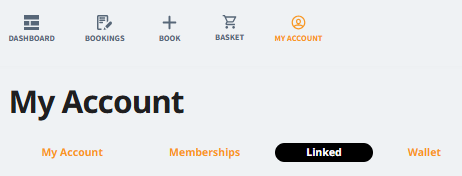
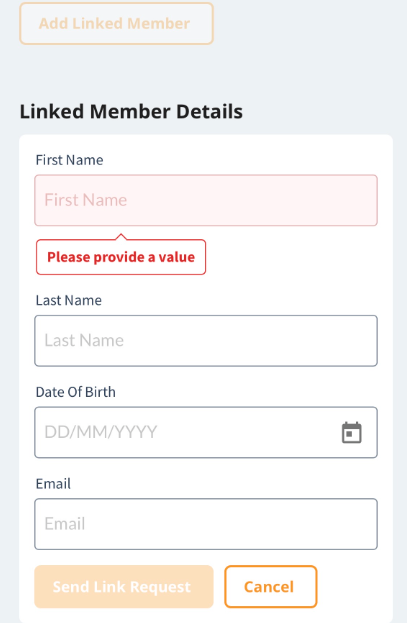
3. Select Add Linked Member and enter the email address of the account you want to link.
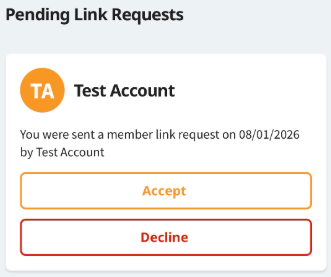
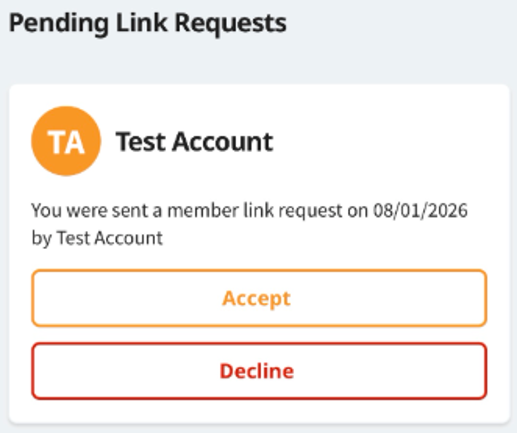
4. This will send a request to the account you wish to link with. Please note that no email or notification is sent, so you will need to log in to the other account manually online using the same link above (for example, your child’s account), then go to the same ‘Linked’ section to accept the request.
Accepting a request
Once the linked account request has been accepted, both accounts will show as available for bookings, with booking permission enabled. You can also remove the linked membership from this section at any time if needed using the same method
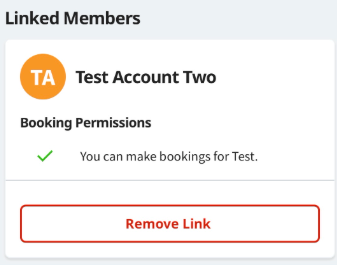
Managing linked bookings
Making a booking on the website
When you make a booking on the website, you will be asked who the booking is for.
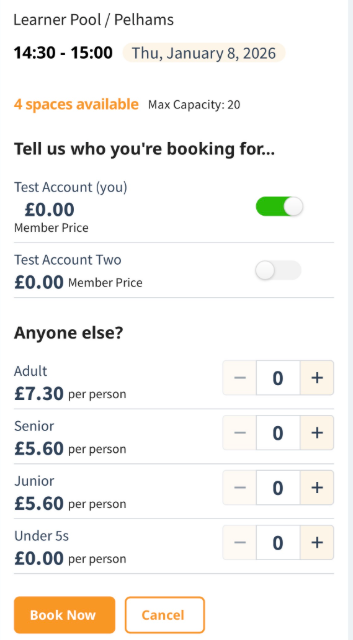
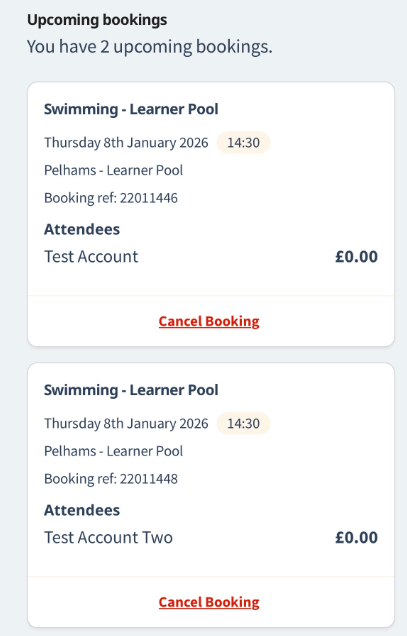
After the booking is made from the main account, upcoming bookings for all linked customers will appear in the Upcoming Bookings section, where you can view and manage them.
Using the mobile app
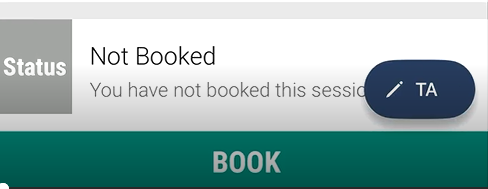
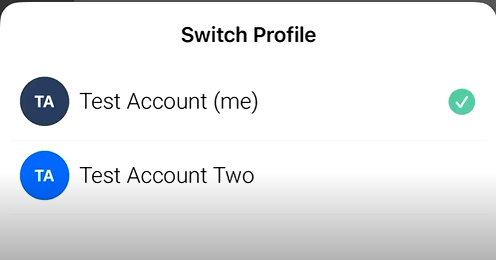
If you already have linked accounts, you will see a toggle with the customer initials when making a booking in the app.
Tap the toggle to switch between linked accounts and choose who you want to book for. You can then complete the booking in the usual way.
Managing bookings in the app
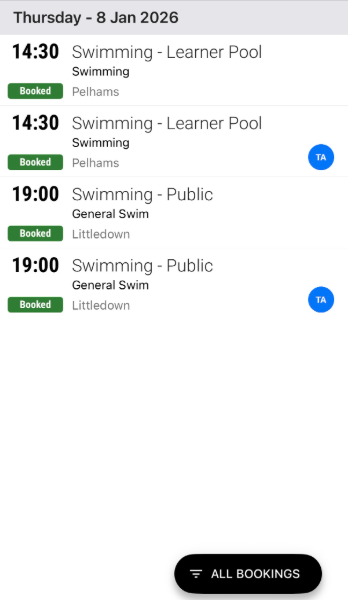
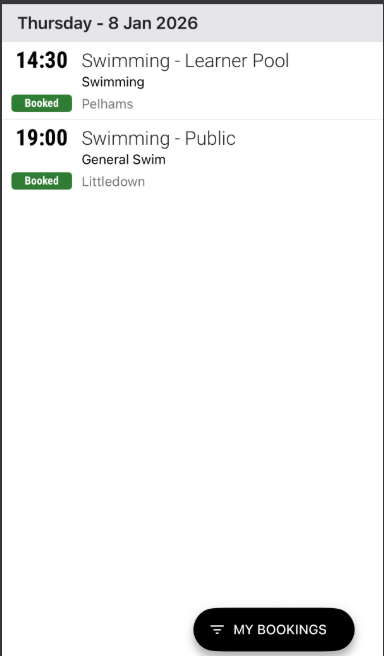
In the manage bookings section of the app, you can use the toggle to switch between viewing bookings for the main account only or all linked accounts.
From here, you can manage bookings as normal.
FAQs
Can I link more than 1 profile to my account?
Yes, you can link more than one profile to your account. However, each linked profile can only be connected to one main account at a time. This means that in a two-parent family for example, children can only be linked to one parent’s account.
Can I link two child accounts if I do not have my own account?
Yes, two or more child accounts can be linked together, with one account used as the main account for making bookings.
I am having trouble logging in to my child’s account because it uses the same email address as mine.
Please visit your local BH Live Active centre where a member of the team will be happy to help set up the linked accounts for you.